V1.2.3

- Package Name
- com.apowersoft.mirror.tv
- Version Name
- V1.2.3
- Version Code
- V1.2.3
- File Size
- 50.28 MB
- Update time
- 2024-5-24


by Apowersoft Limited
Mirror phone screen and stream video to TV
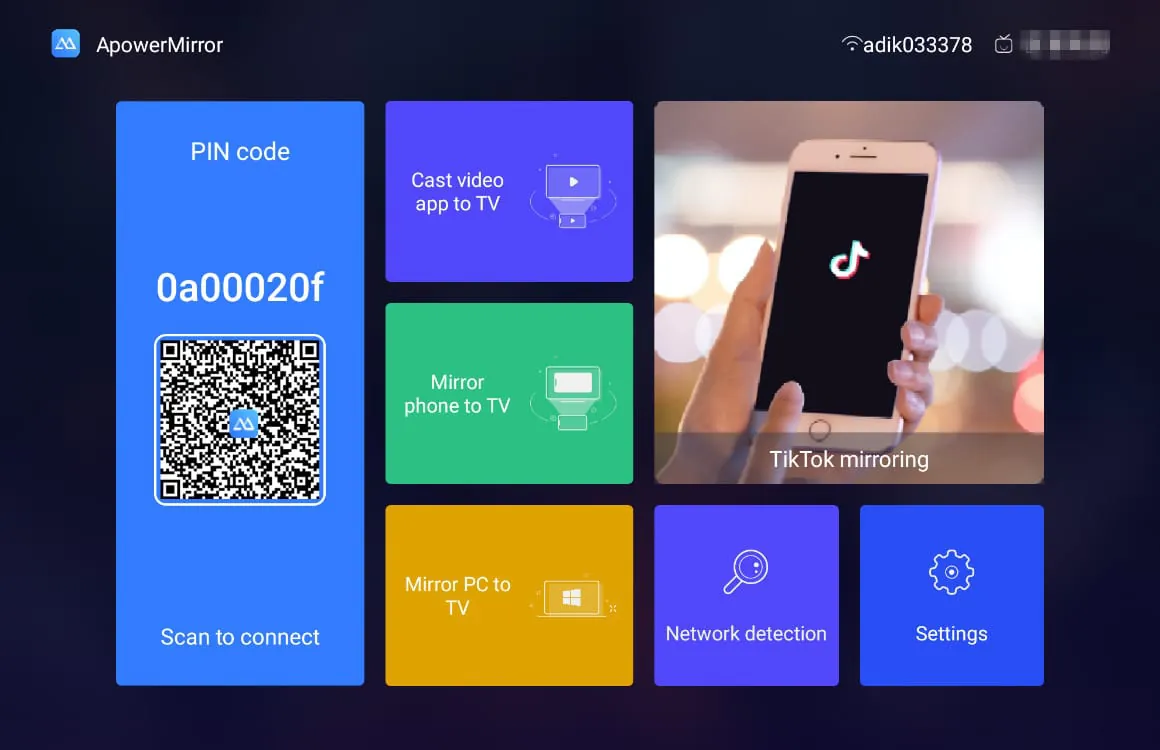
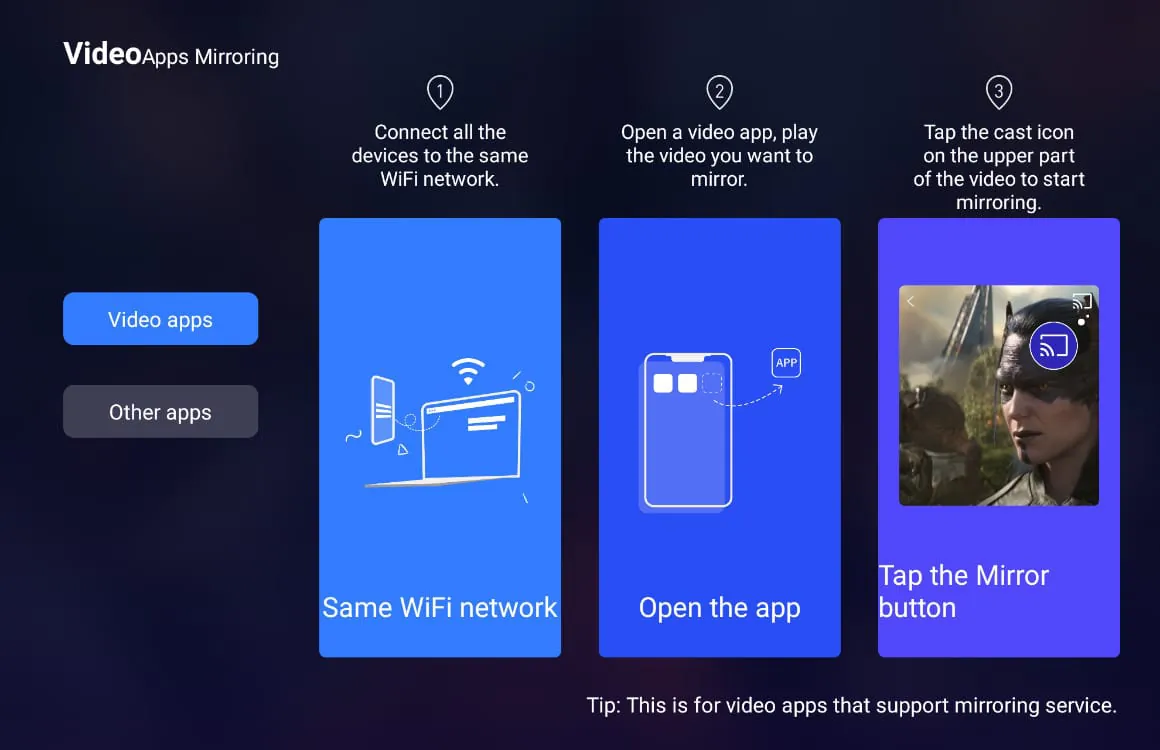
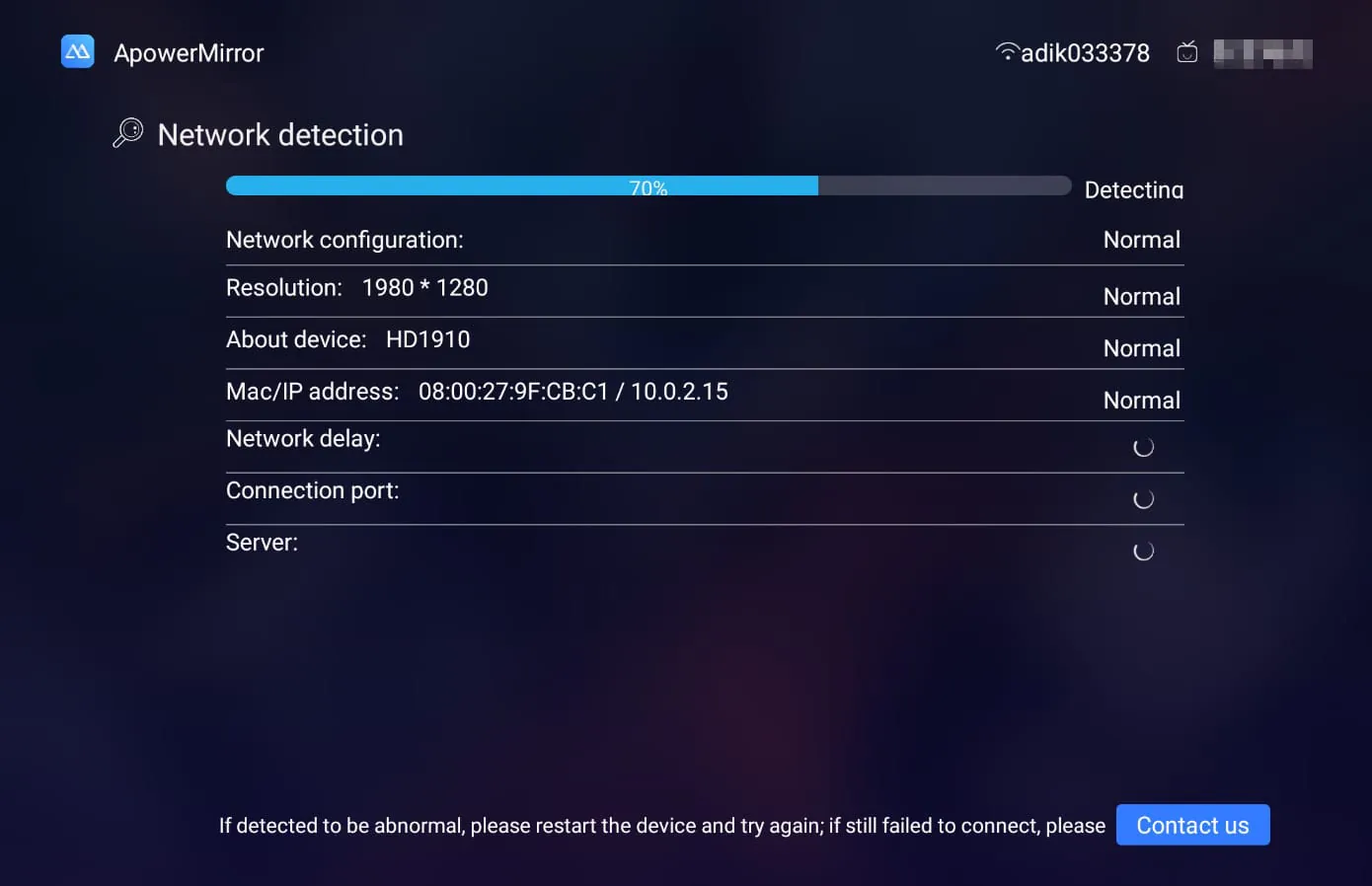
ApowerMirror is a versatile screen mirroring application that allows users to seamlessly display and control the screen of their Android or iOS smartphone or tablet directly on a Windows or Mac computer, creating a unified and interactive experience between mobile and desktop devices.
The application stands out with its high-quality, low-latency mirroring capabilities. It supports both wired USB and wireless Wi-Fi connections for flexibility. Beyond simple mirroring, it offers real-time screen recording and screenshot capture of the mobile screen on the computer. A standout feature is the reverse control function, enabling users to fully operate their phone using the computer's mouse and keyboard. Additionally, it allows for screen sharing during video calls and presentations.
ApowerMirror provides a balanced set of advantages and some limitations.
The app's functionality extends well beyond basic mirroring to become a productivity and entertainment tool.
Click the button "Check All Versions" below to download and install it. The general process involves installing the ApowerMirror application on both your computer and your mobile device from their official sources. Ensure both devices are connected to the same Wi-Fi network for wireless mirroring. For a more stable link, you can use a USB cable. Open the app on both devices, then on your phone, tap the "Mirror" button and select your computer's name from the list to initiate the connection. Once connected, you can navigate your phone's interface on the computer monitor and access all the control and recording tools from the PC sidebar.
Get ApowerMirror from an official store or available APK channel.
ZIP files require a Split APKs Installer (e.g., SAI) from Google Play to install. Steps: 1. Download SAI from Google Play; 2. Open SAI and tap "Install APKs"; 3. Select the ZIP file; 4. Complete installation.
The latest version currently listed by Appspicked is V1.2.3, with information updated on May 16, 2026. Versions may vary by device, region, or rollout schedule, so users should also check Google Play or announcements from Apowersoft Limited.
No website can guarantee that an app is completely risk-free. Appspicked recommends downloading ApowerMirror only from an official app store or a verified channel operated by Apowersoft Limited. Before installing, confirm the developer name, package ID com.apowersoft.mirror.tv, requested permissions, privacy policy, and download source.
ApowerMirror may be unavailable because of regional restrictions, device incompatibility, account or age settings, a temporary removal, a name change, or because it has not been released for that platform. An Android package page does not necessarily mean that an iOS App Store version exists. Check Apowersoft Limited’s official website for current availability.
Use Google Play or another official download channel provided by Apowersoft Limited whenever possible. Appspicked provides app information and store links, but users should verify the destination domain and publisher before downloading or updating the app.
The information on Appspicked may represent the most recently indexed snapshot. App stores sometimes release updates gradually or display different versions according to region, device, operating system, or testing group. The official store listing should be treated as the final reference.
ApowerMirror is listed for Android, with a reported minimum requirement of Not specified. Actual compatibility may also depend on the device model, region, available storage, hardware features, and installed system components.
The initial download may be free, but subscriptions, advertising, paid features, or in-app purchases may still apply. Prices and available purchases can vary by country and version. Check the payment information displayed by Google Play before completing a transaction.
Check the network connection, storage space, operating-system version, account region, and device compatibility. Restart the device and try again through the official store. If the problem continues, consult the support resources provided by Apowersoft Limited.