


ADVERTISEMENT
ADVERTISEMENT

Xender Xender
Category
ToolsVersion
V14.2.1.Prime
Tag
mobile | downloader | whatsapp
Rate
4.60
★★★★★
Reviews
500 +
Installs
500M +
Developer
Xender File Sharing Team
Content Rating
Everyone
Fast Share Tool! Share Music, Share Video, Share Photo, Status Saver, Connect PC
 APK
APK  Google Play
  iOS
iOS  4.60
4.60ADVERTISEMENT
ADVERTISEMENT
Author's Review
com Review
Screenshots

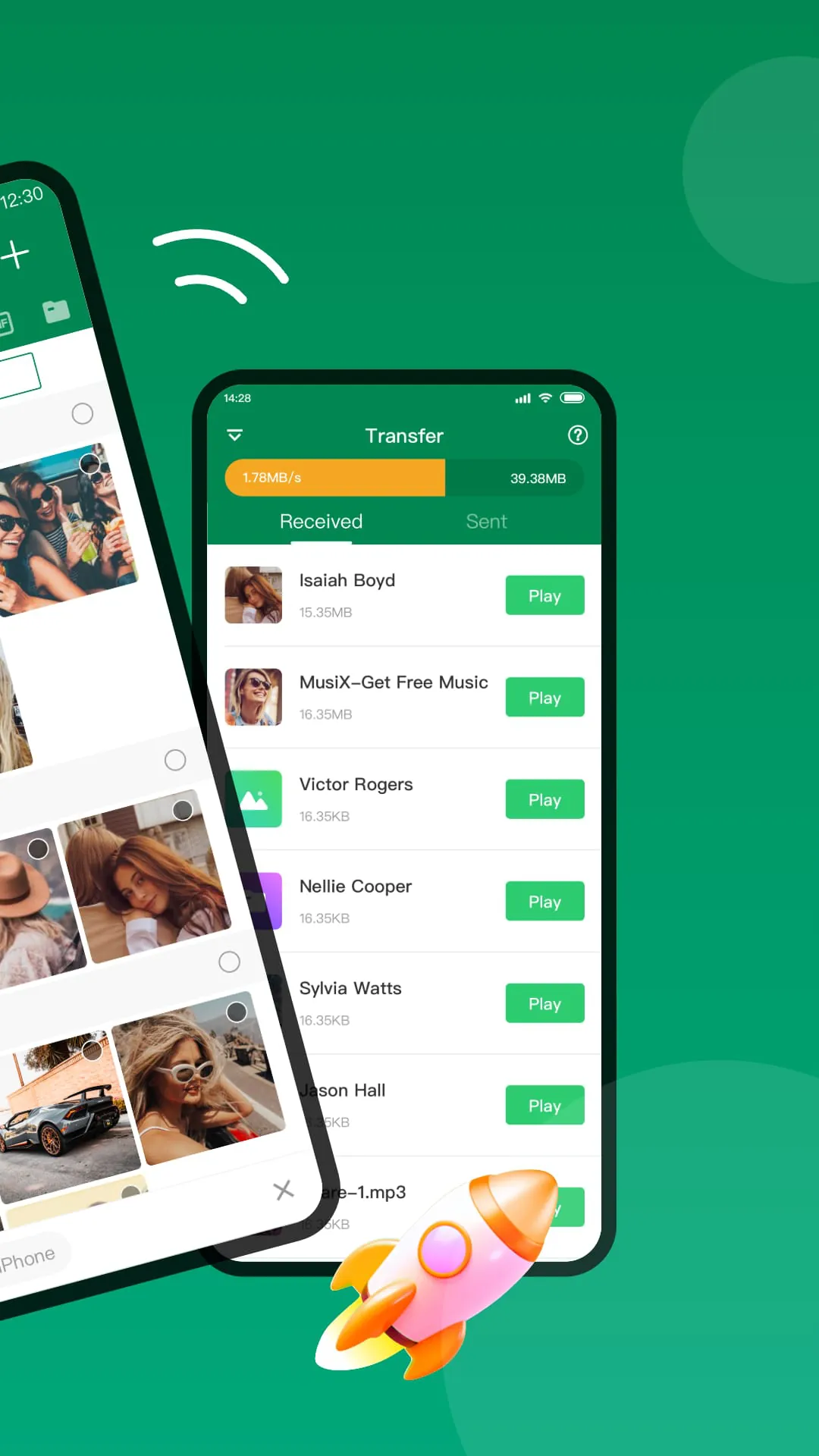
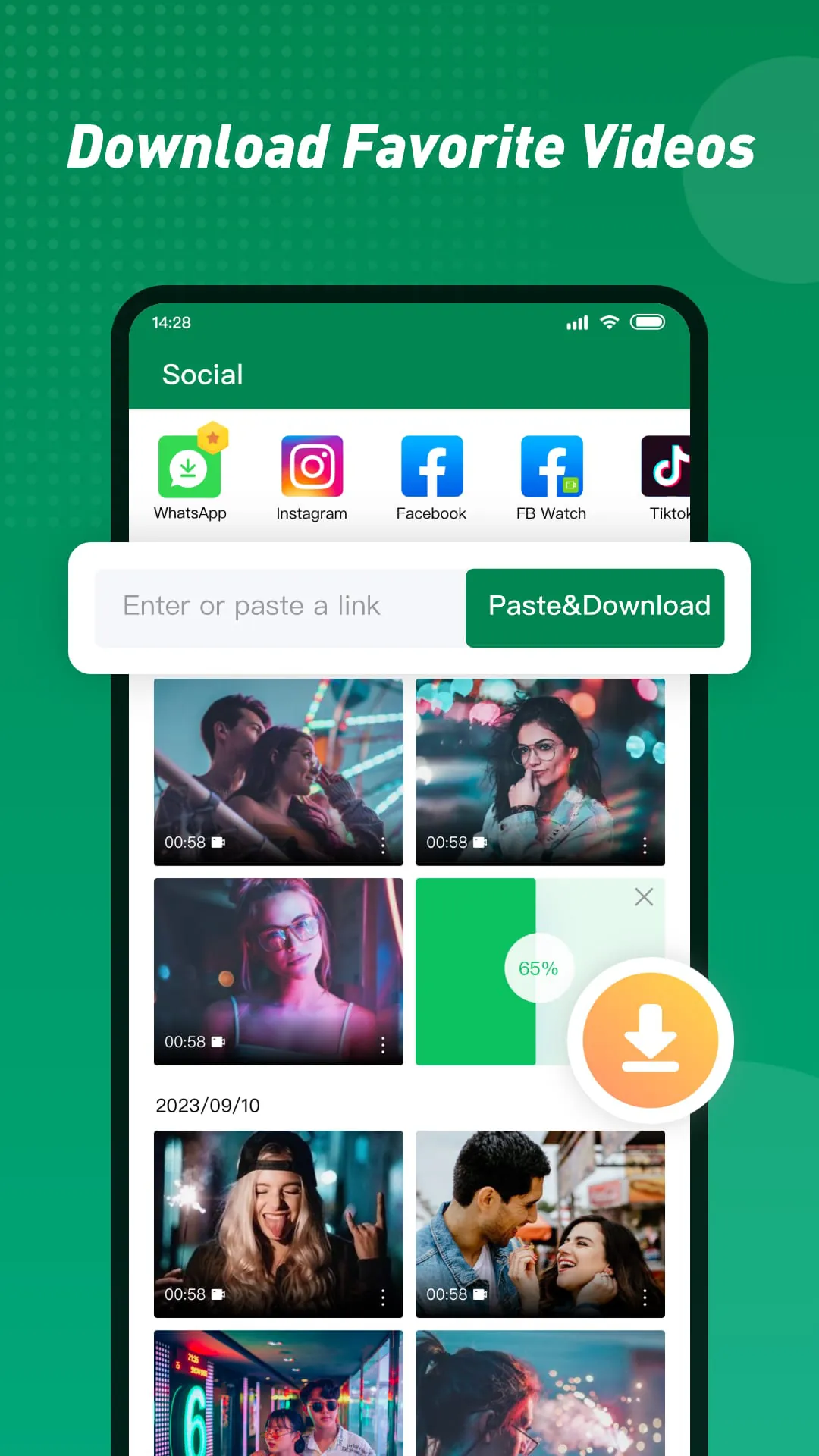
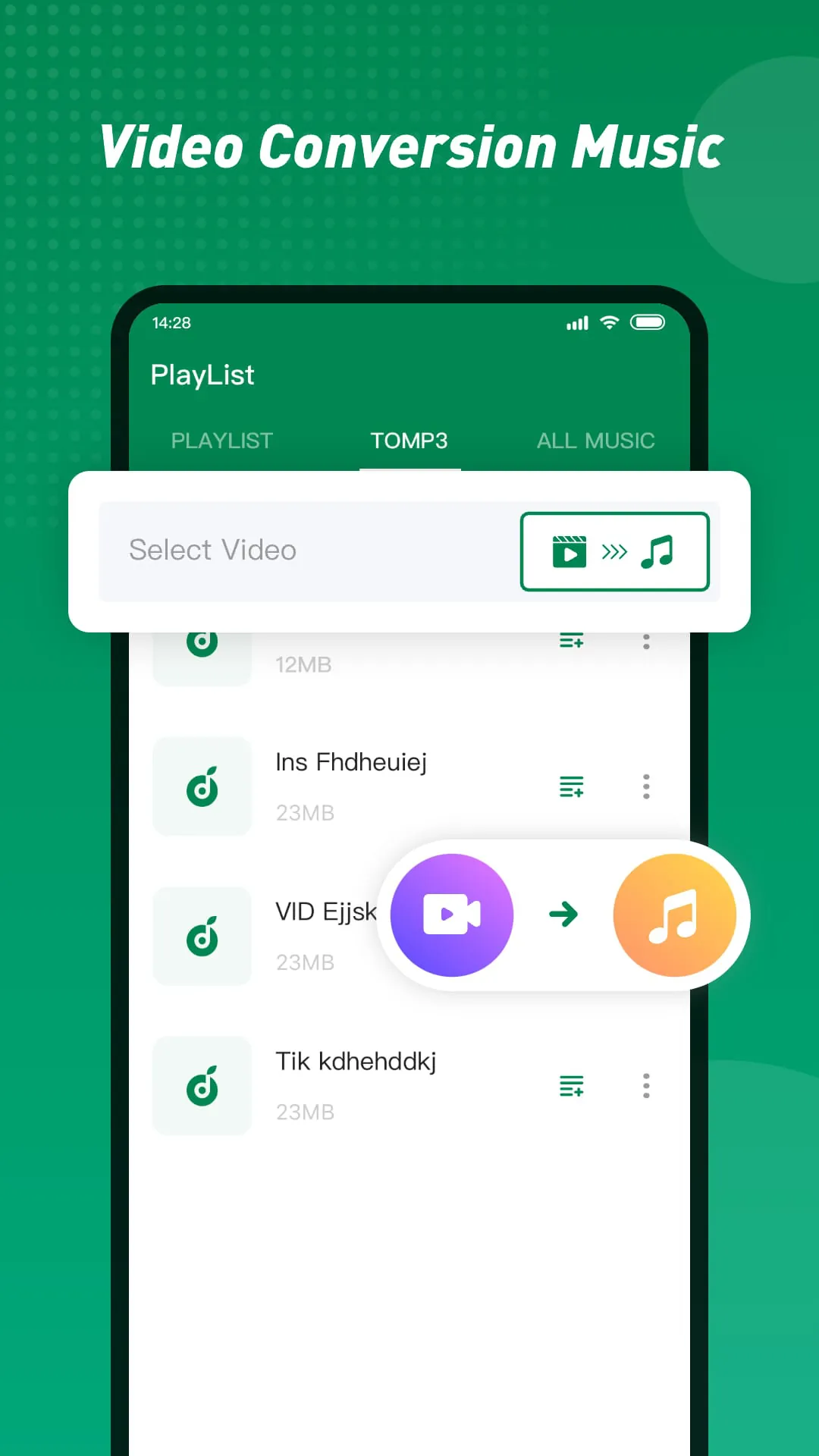
Additional Information
Category
ToolsVersion
V14.2.1.Prime
Tag
mobile | downloader | whatsapp
Rate
4.60
★★★★★
Reviews
500 +
Installs
500M +
Developer
Xender File Sharing Team
Content Rating
Everyone
Fast Share Tool! Share Music, Share Video, Share Photo, Status Saver, Connect PC
ADVERTISEMENT
ADVERTISEMENT
Previous Versions
ZIP files require a Split APKs Installer (e.g., SAI) from Google Play to install. Steps: 1. Download SAI from Google Play; 2. Open SAI and tap "Install APKs"; 3. Select the ZIP file; 4. Complete installation.
V17.1.1.prime

Package Name
cn.xender
Version Name
V17.1.1.prime
Version Code
V17.1.1.prime
File Size
24.71 MB
Update time
2026-1-6
V16.1.1.prime
Package Name
cn.xender
Version Name
V16.1.1.prime
Version Code
V16.1.1.prime
File Size
32.57 MB
Update time
2025-1-14
V14.2.1.Prime
Package Name
cn.xender
Version Name
V14.2.1.Prime
Version Code
V14.2.1.Prime
File Size
30.15 MB
Update time
2024-5-24
V14.1.1.Prime
Package Name
cn.xender
Version Name
V14.1.1.Prime
Version Code
V14.1.1.Prime
File Size
31.84 MB
Update time
2024-4-18
V14.0.1.Prime
Package Name
cn.xender
Version Name
V14.0.1.Prime
Version Code
V14.0.1.Prime
File Size
29.41 MB
Update time
2024-1-27
V12.6.1.Prime
Package Name
cn.xender
Version Name
V12.6.1.Prime
Version Code
V12.6.1.Prime
File Size
21.25 MB
Update time
2023-3-27
V12.3.1.Prime
Package Name
cn.xender
Version Name
V12.3.1.Prime
Version Code
V12.3.1.Prime
File Size
20.01 MB
Update time
2022-10-19
V12.0.1.Prime
Package Name
cn.xender
Version Name
V12.0.1.Prime
Version Code
V12.0.1.Prime
File Size
18.7 MB
Update time
2022-1-21
V11.0.2.Prime
Package Name
cn.xender
Version Name
V11.0.2.Prime
Version Code
V11.0.2.Prime
File Size
18.6 MB
Update time
2021-10-26
V10.0.3.Prime
Package Name
cn.xender
Version Name
V10.0.3.Prime
Version Code
V10.0.3.Prime
File Size
20.5 MB
Update time
2021-10-13
V10.0.2.Prime
Package Name
cn.xender
Version Name
V10.0.2.Prime
Version Code
V10.0.2.Prime
File Size
20.4 MB
Update time
2021-8-19
V8.1.3.Prime
Package Name
cn.xender
Version Name
V8.1.3.Prime
Version Code
V8.1.3.Prime
File Size
20.0 MB
Update time
2021-7-13
ADVERTISEMENT
You Might Like