V5.2.6

- Package Name
- com.centurylink.ctl_droid_wrap
- Version Name
- V5.2.6
- Version Code
- V5.2.6
- File Size
- 64.7 MB
- Update time
- 2024-5-30


by CenturyLink, Inc
Management of your account and services into one easy place.
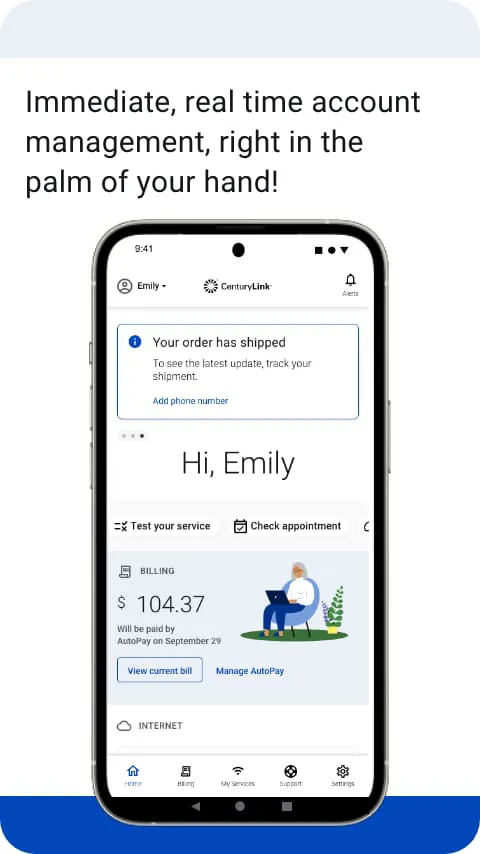
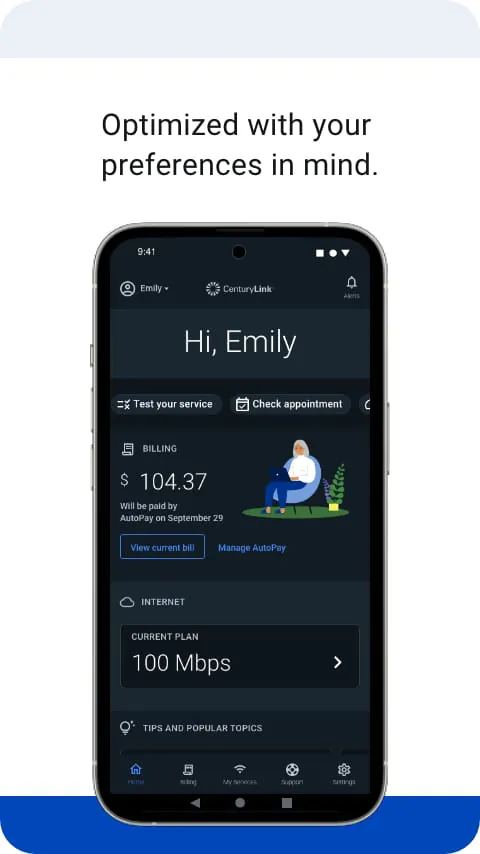
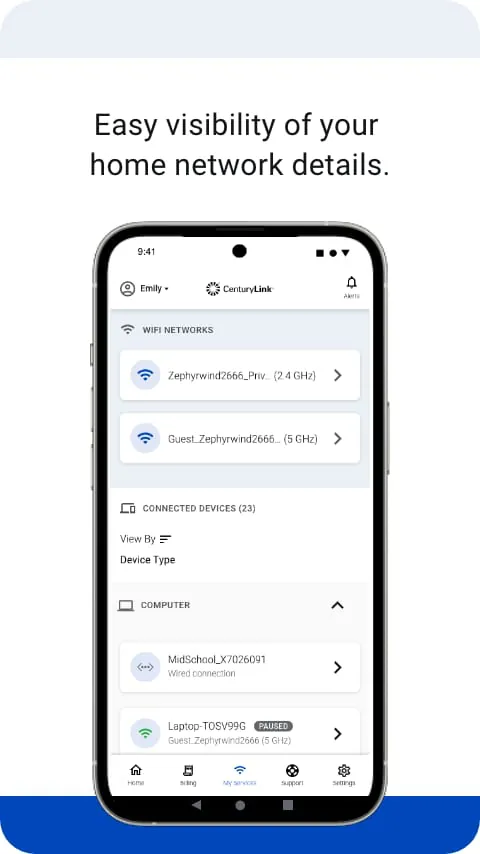
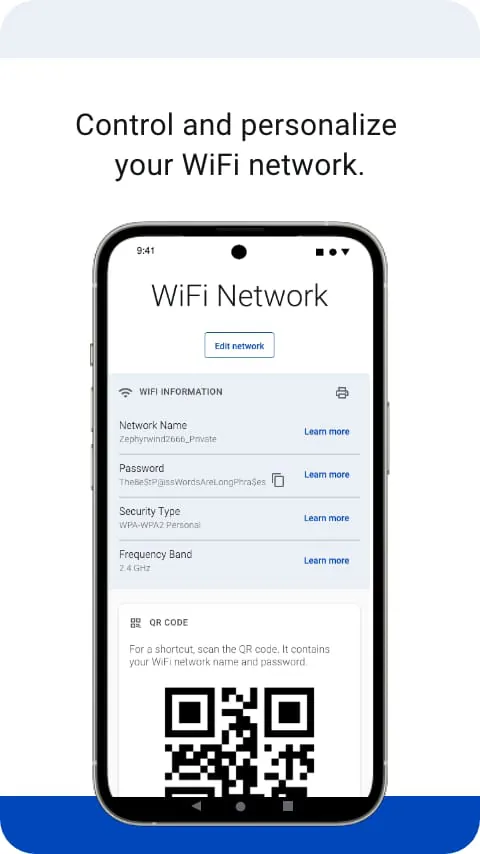
The My CenturyLink app is a dedicated mobile companion designed for residential customers of CenturyLink, now known as Lumen Technologies, to manage their home internet, phone, and TV services directly from their smartphone or tablet, providing a convenient portal for account oversight, billing, and technical support without needing to visit the website or call customer service.
The application empowers users with real-time control and visibility over their home services. It allows for seamless bill payments, service usage monitoring, and troubleshooting assistance. A standout feature is the ability to manage and reset your home Wi-Fi network remotely, including changing network names and passwords. Furthermore, it sends timely outage alerts and service updates, keeping you informed about the status of your connection in your local area.
Evaluating the app reveals a balance of conveniences and limitations. On the positive side, it offers significant user empowerment for basic account and network management.
However, some areas could see improvement.
The core functions of My CenturyLink are centered on account management, support, and network control. Specifically, users can perform a variety of essential tasks through the interface.
Click the button "Check All Versions" below to download and install it. Once installed, open the app and log in using your primary CenturyLink account credentials; if you do not have an online account, you will need to create one using your account number. After logging in, the dashboard will present an overview of your services and account status. You can navigate through the menu, typically found in the top-left corner, to access different sections like Billing, Internet, and Support. To pay a bill, simply select the Billing section and follow the prompts. To manage your Wi-Fi, go to the Internet or Network section where you can find options to change your settings or restart your equipment. For any issues, the Support section offers troubleshooting flows and direct contact options.
Get My CenturyLink from an official store or available APK channel.
ZIP files require a Split APKs Installer (e.g., SAI) from Google Play to install. Steps: 1. Download SAI from Google Play; 2. Open SAI and tap "Install APKs"; 3. Select the ZIP file; 4. Complete installation.
The latest version currently listed by Appspicked is V5.2.6, with information updated on May 14, 2026. Versions may vary by device, region, or rollout schedule, so users should also check Google Play or announcements from CenturyLink, Inc.
No website can guarantee that an app is completely risk-free. Appspicked recommends downloading My CenturyLink only from an official app store or a verified channel operated by CenturyLink, Inc. Before installing, confirm the developer name, package ID com.centurylink.ctl_droid_wrap, requested permissions, privacy policy, and download source.
My CenturyLink may be unavailable because of regional restrictions, device incompatibility, account or age settings, a temporary removal, a name change, or because it has not been released for that platform. An Android package page does not necessarily mean that an iOS App Store version exists. Check CenturyLink, Inc’s official website for current availability.
Use Google Play or another official download channel provided by CenturyLink, Inc whenever possible. Appspicked provides app information and store links, but users should verify the destination domain and publisher before downloading or updating the app.
The information on Appspicked may represent the most recently indexed snapshot. App stores sometimes release updates gradually or display different versions according to region, device, operating system, or testing group. The official store listing should be treated as the final reference.
My CenturyLink is listed for Android, with a reported minimum requirement of Not specified. Actual compatibility may also depend on the device model, region, available storage, hardware features, and installed system components.
The initial download may be free, but subscriptions, advertising, paid features, or in-app purchases may still apply. Prices and available purchases can vary by country and version. Check the payment information displayed by Google Play before completing a transaction.
Check the network connection, storage space, operating-system version, account region, and device compatibility. Restart the device and try again through the official store. If the problem continues, consult the support resources provided by CenturyLink, Inc.