V7.0

- Package Name
- com.google.android.apps.authenticator2
- Version Name
- V7.0
- Version Code
- V7.0
- File Size
- 4.06 MB
- Update time
- 2026-1-6



by Google LLC
Enable 2-step verification to protect your account from hijacking.
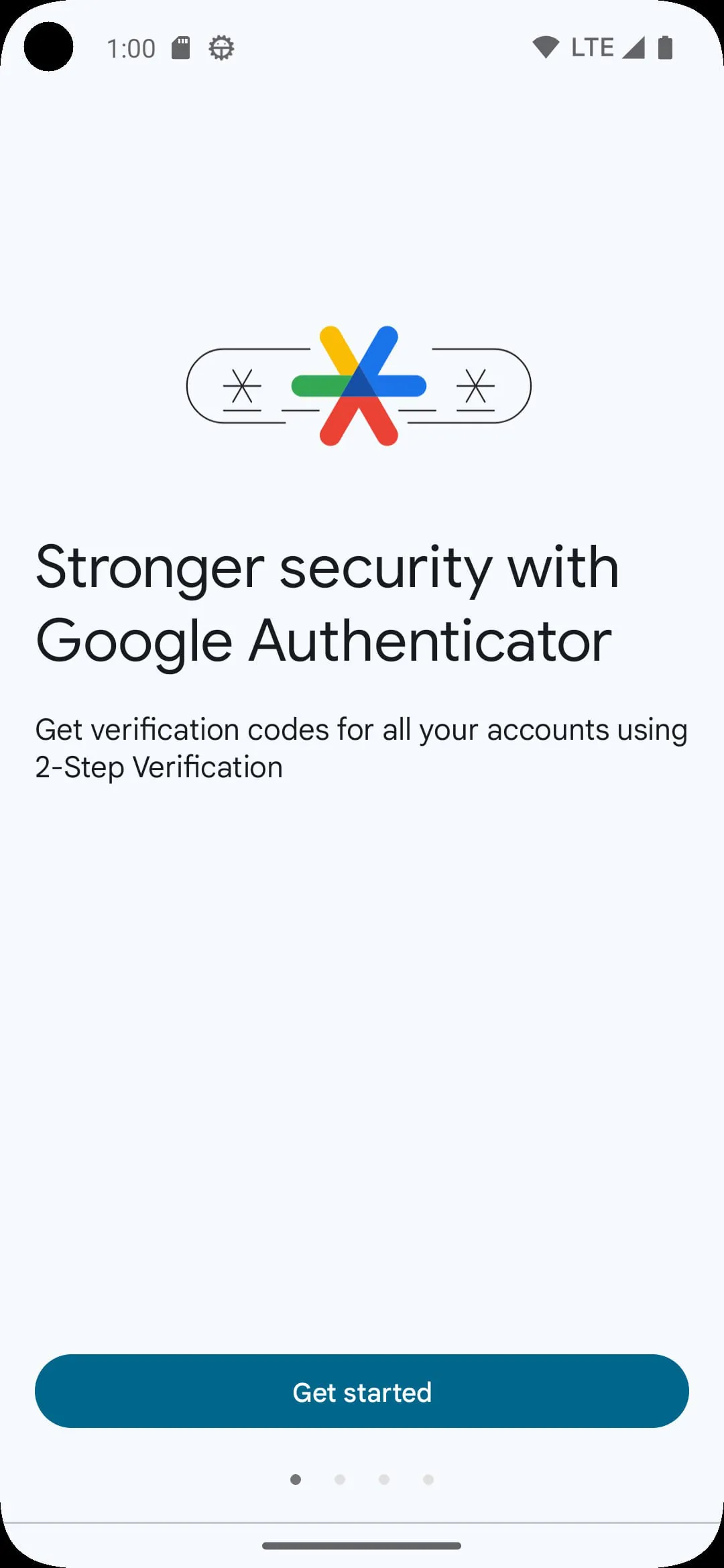
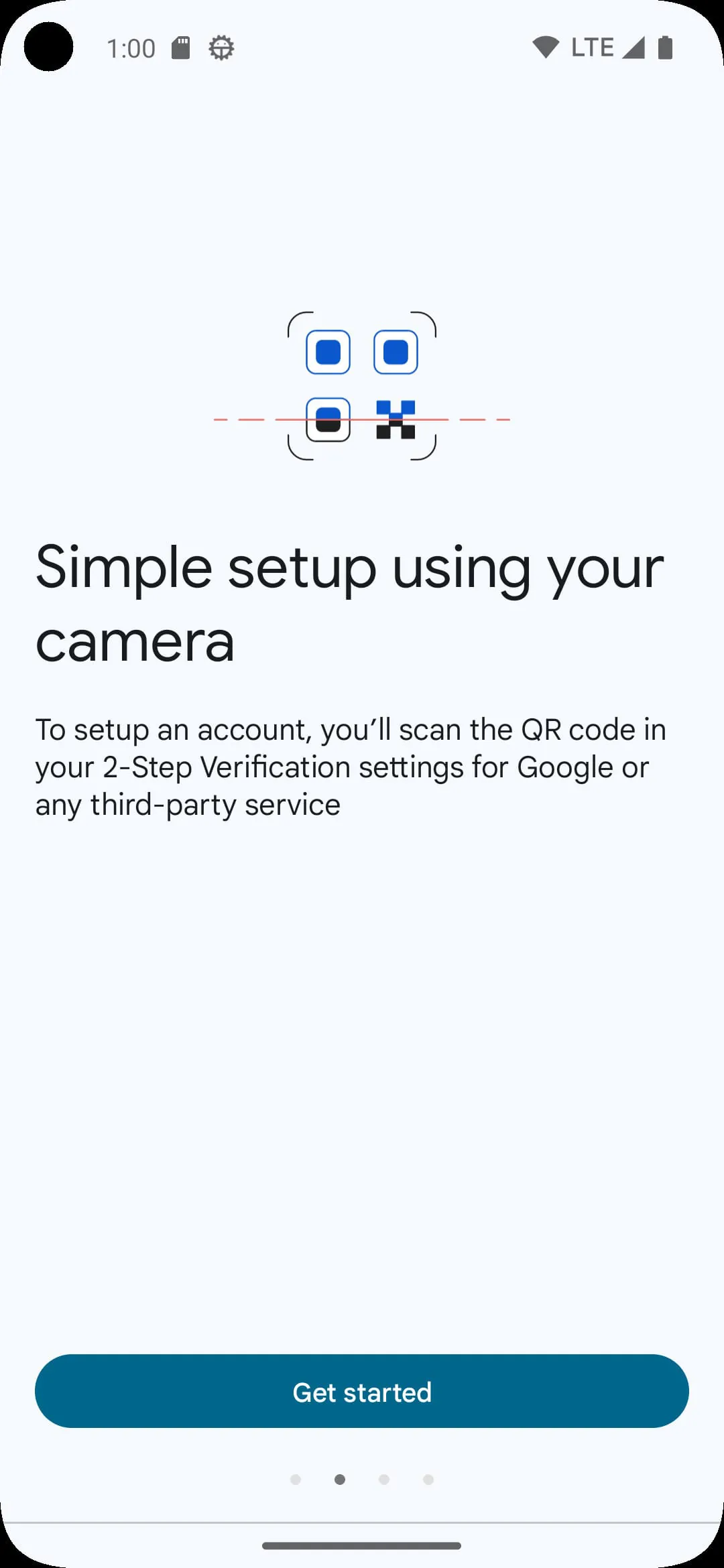
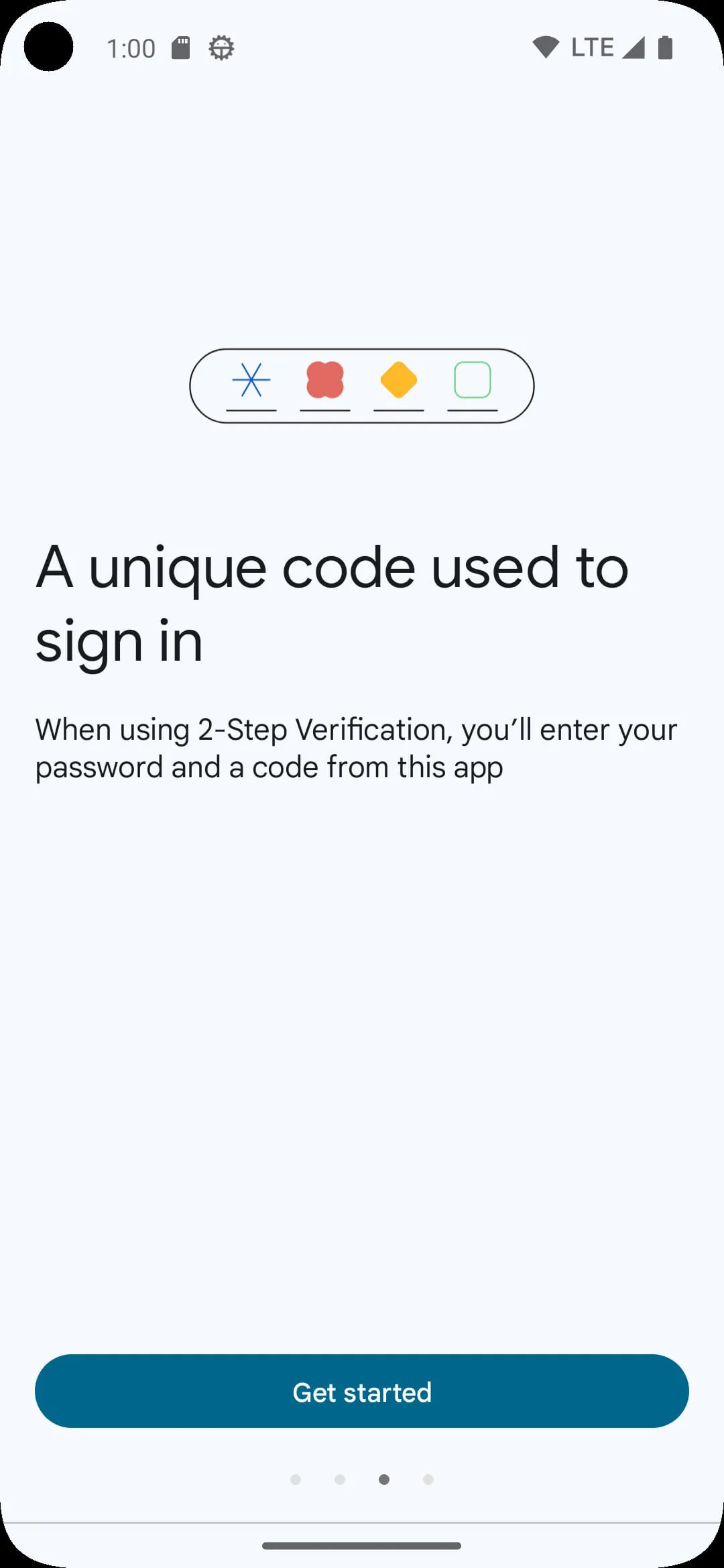
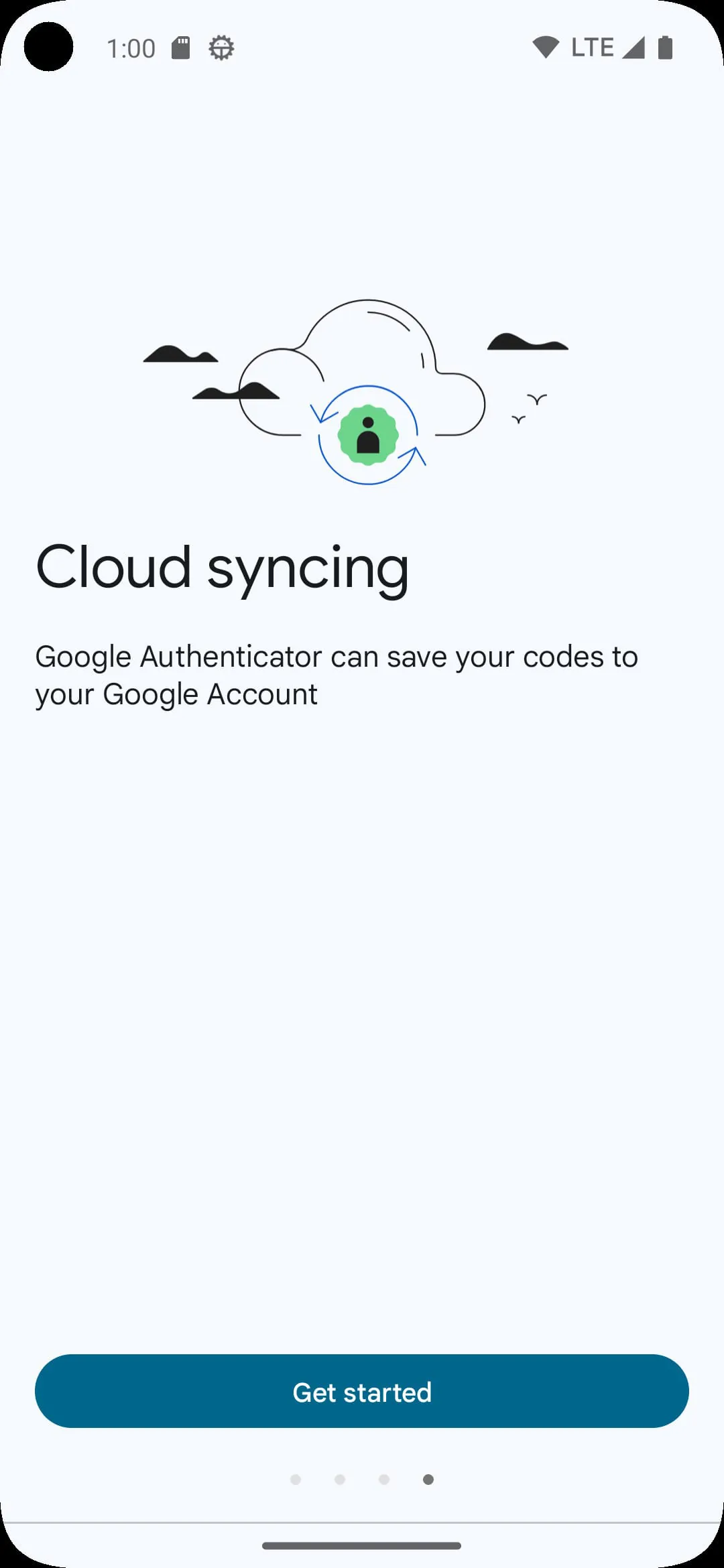
Google Authenticator is a free security application developed by Google that generates time-based one-time passwords (TOTP) for two-factor authentication (2FA). It works on your mobile device independently of network connectivity, providing an additional layer of security beyond just a username and password. By syncing with supported online accounts, it produces a constantly rotating six- to eight-digit code that you must enter during login, ensuring that only someone with physical access to your phone can gain access to your accounts.
The application is designed with a sharp focus on security and simplicity. Its core functionality revolves around generating verification codes without needing an internet connection, which is crucial for security. A significant feature is its ability to work with a wide array of services, from Google and Facebook to various financial institutions and password managers. The app also supports the transfer of accounts to a new device via QR codes, making migration easier while maintaining security.
Every security tool involves trade-offs, and Google Authenticator is no exception. Its primary advantage is enhancing account security significantly by requiring a second factor that is physically on you, dramatically reducing the risk of unauthorized access from phishing or stolen passwords. However, this strength also introduces a key consideration: if you lose your phone or the device it's installed on, you can be locked out of your accounts if you haven't set up backup codes or alternative 2FA options.
The app performs one primary function with high reliability. It acts as a software token that syncs with a service's server using a shared secret key, established when you first scan the QR code. From that moment, the app and the server use the same algorithm and the current time to independently generate the same matching code every 30 seconds. This code is what you input for verification. It does not send or receive data during login; it merely provides the code for you to type.
Click the button "Check All Versions" below to download and install it. Once installed, open the app and tap the "+" sign to begin adding an account. You will typically choose "Scan a QR code." Navigate to the security settings of the online service you wish to protect (like Gmail or Facebook), enable two-factor authentication, and the site will display a QR code. Scan this code with the app, and the account will be added instantly. From then on, whenever you log in to that service, you will need to open Google Authenticator and enter the current 6-digit code displayed next to that account.
Get Google Authenticator from an official store or available APK channel.
ZIP files require a Split APKs Installer (e.g., SAI) from Google Play to install. Steps: 1. Download SAI from Google Play; 2. Open SAI and tap "Install APKs"; 3. Select the ZIP file; 4. Complete installation.
The latest version currently listed by Appspicked is V6.0, with information updated on May 16, 2026. Versions may vary by device, region, or rollout schedule, so users should also check Google Play / App Store or announcements from Google LLC.
No website can guarantee that an app is completely risk-free. Appspicked recommends downloading Google Authenticator only from an official app store or a verified channel operated by Google LLC. Before installing, confirm the developer name, package ID com.google.android.apps.authenticator2, requested permissions, privacy policy, and download source.
Google Authenticator may be unavailable because of regional restrictions, device incompatibility, account or age settings, a temporary removal, a name change, or because it has not been released for that platform. An Android package page does not necessarily mean that an iOS App Store version exists. Check Google LLC’s official website for current availability.
Use Google Play / App Store or another official download channel provided by Google LLC whenever possible. Appspicked provides app information and store links, but users should verify the destination domain and publisher before downloading or updating the app.
The information on Appspicked may represent the most recently indexed snapshot. App stores sometimes release updates gradually or display different versions according to region, device, operating system, or testing group. The official store listing should be treated as the final reference.
Google Authenticator is listed for Android / iOS, with a reported minimum requirement of Not specified. Actual compatibility may also depend on the device model, region, available storage, hardware features, and installed system components.
The initial download may be free, but subscriptions, advertising, paid features, or in-app purchases may still apply. Prices and available purchases can vary by country and version. Check the payment information displayed by Google Play / App Store before completing a transaction.
Check the network connection, storage space, operating-system version, account region, and device compatibility. Restart the device and try again through the official store. If the problem continues, consult the support resources provided by Google LLC.