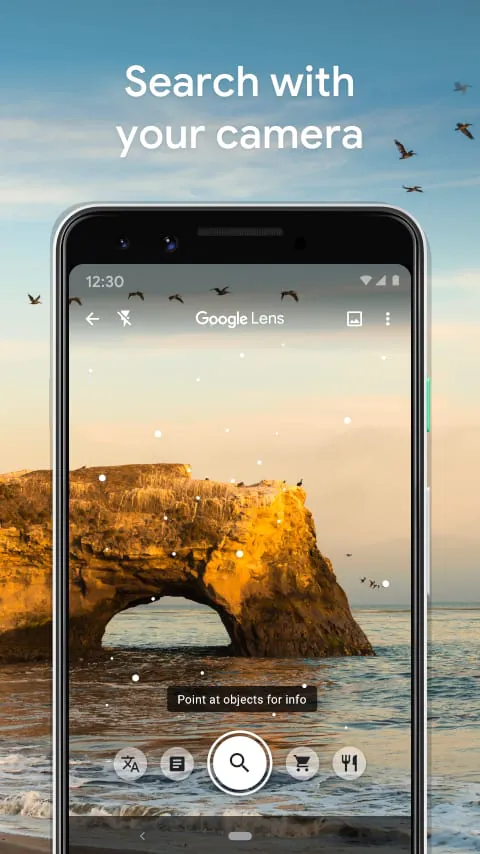
Google Lens is an AI-powered visual search tool developed by Google that enables users to search, identify, and interact with the world around them simply by using their smartphone camera, an existing photo, or a screenshot. Instead of typing keywords into a search bar, users can point their camera at virtually any object, text, landmark, plant, or animal, and the app will leverage advanced computer vision and machine learning algorithms to provide instant, relevant information pulled from Google's vast knowledge graph. It effectively transforms your camera into a powerful search engine, allowing you to discover similar products, translate foreign languages in real-time, scan and copy text, or learn more about your surroundings without the hassle of crafting the perfect textual query.
Key Features
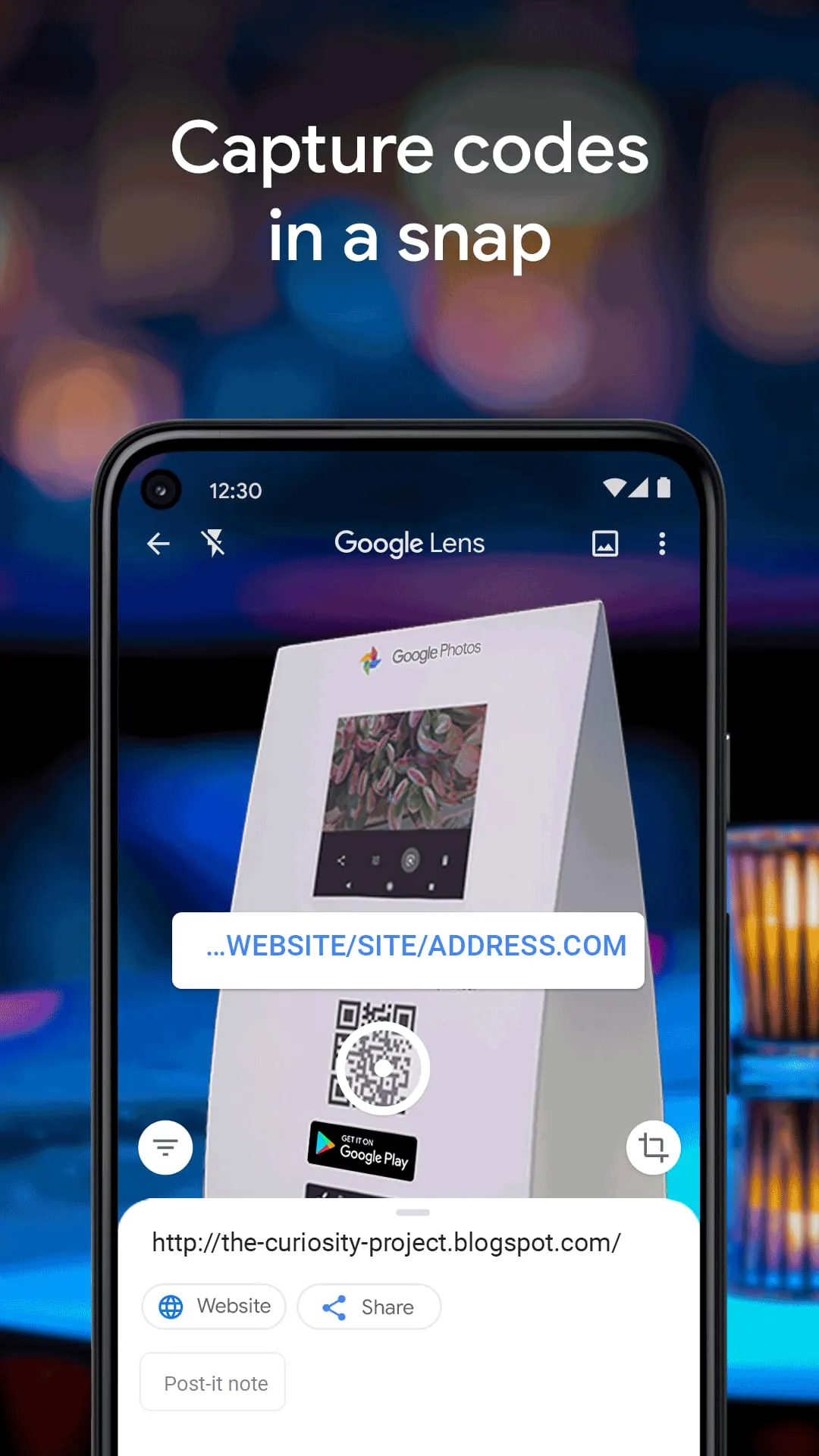
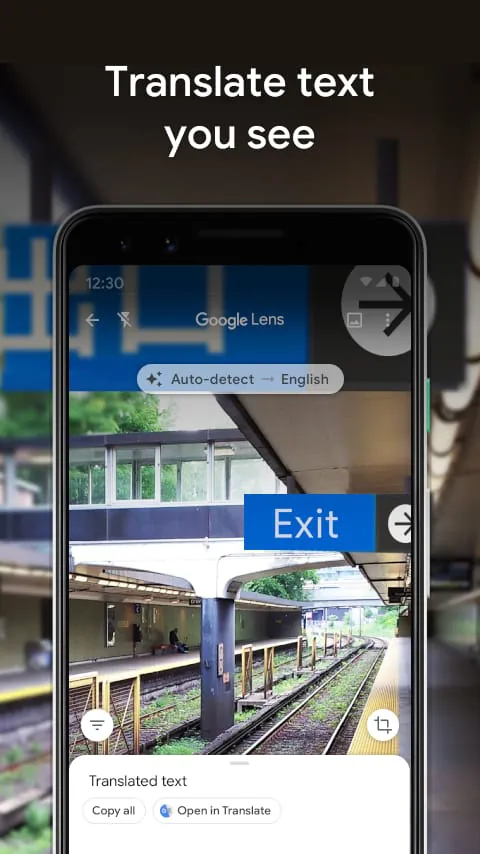
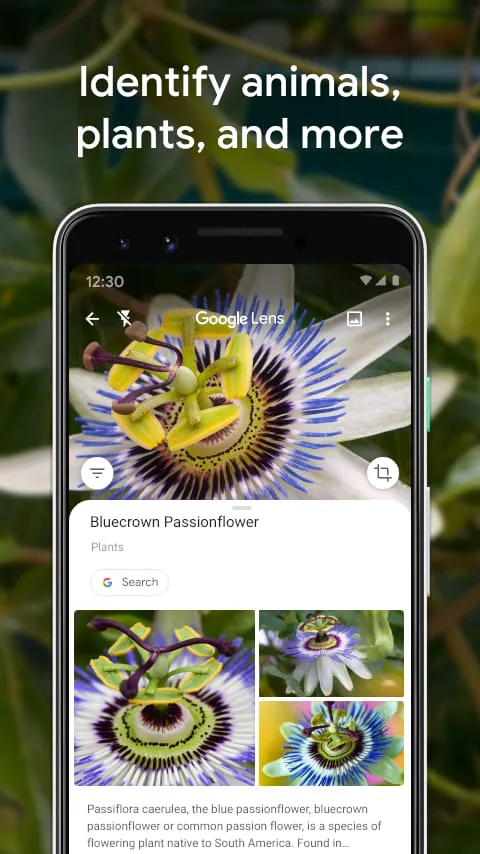
Google Lens comes packed with a versatile set of features designed to handle a wide array of everyday tasks with ease. One of its standout capabilities is real-time text translation, supporting over 100 languages, which allows users to point their camera at signs, menus, or documents to see the translated text overlaid on the screen instantly. It also includes a highly accurate optical character recognition (OCR) function that lets you copy text from the physical world—such as serial numbers, handwritten notes, or paragraphs from a book—and paste it directly onto your phone or computer. For shoppers, the visual search capability can identify clothing, furniture, and home decor, providing options to find similar items and compare prices across retailers. Additionally, it offers specialized identification tools for plants and animals, homework assistance for subjects like math and science, the ability to scan QR codes and barcodes, and integration with Google Maps to provide details about nearby landmarks and restaurants, including ratings and operating hours.
Pros & Cons
Like any tool, Google Lens has its distinct advantages and limitations that users should keep in mind. On the positive side, the app is completely free to use with no hidden premium tiers, offers a highly intuitive and user-friendly interface, and delivers exceptionally fast and accurate object recognition in optimal conditions. Its seamless integration across the Google ecosystem—including Google Photos, Chrome, Google Assistant, and the Google app—makes it incredibly convenient to access whenever needed. However, there are some downsides; the app’s performance can vary significantly in low-light environments or when dealing with low-quality images, and it requires a stable internet connection for most of its advanced recognition features, limiting its offline utility. Furthermore, because it relies heavily on Google's services, users deeply embedded in other ecosystems may find its functionality somewhat restricted, and it may occasionally struggle with rare objects, complex handwriting, or ambiguous visuals.
Functions
The core function of Google Lens is to interpret visual input and map it to useful digital actions and information. When you aim your camera at text, its primary function is to recognize the characters, allowing you to translate, copy, or hear it read aloud. When aimed at a physical product or outfit, it functions as a reverse image search and shopping assistant, finding where to buy the item or suggesting visually similar alternatives. For nature enthusiasts, its function is taxonomic identification, distinguishing between thousands of plant species and animal breeds. For travelers and students, it serves as an instantaneous translator and a homework helper that can solve math equations or provide explainers on historical facts. Essentially, the app acts as a contextual bridge, taking whatever you see in the real world and connecting it to the most relevant data available on the internet, whether that be a historical date, a recipe, a purchase link, or a dictionary definition.
How to Use
Click the button "Check All Versions" below to download and install it. Once installed, or if it is already pre-installed on your Android device, you can begin using Google Lens in several ways. The most common method is to open the Google App on your phone and tap the colorful camera icon (Lens icon) located in the search bar; from there, you can point your camera at an object and tap the shutter button to analyze it, or select an image from your gallery. If you are using an Android device, you may also be able to access Lens directly through your native Camera app by switching to the "Lens" mode, or via Google Assistant by saying "Use Google Lens." For those on a desktop, you can use Lens by going to Google Images and clicking the camera icon to upload a photo, or by right-clicking on any image within the Google Chrome browser and selecting "Search image with Google Lens" to open a side panel with results. After capturing or selecting an image, simply tap on the highlighted areas or select a mode (such as Text, Translate, or Shopping) at the bottom of the screen to perform your desired action.




 APK
APK  Google Play
  iOS
iOS  4.70
4.70