


ADVERTISEMENT
ADVERTISEMENT

Microsoft To Do Microsoft To Do
Category
ProductivityVersion
V2.120.795.02
Tag
apps | outlook | tasks
Rate
4.60
★★★★★
Reviews
500 +
Installs
10M +
Developer
Microsoft Corporation
Content Rating
Everyone
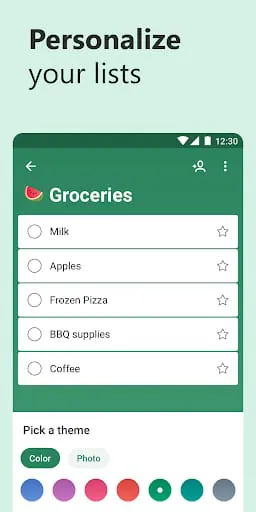
Increase productivity! Make a daily to do list, create a reminder & share notes!
 APK
APK  Google Play
  iOS
iOS  4.60
4.60ADVERTISEMENT
ADVERTISEMENT
Author's Review
com Review
Screenshots



Additional Information
Category
ProductivityVersion
V2.120.795.02
Tag
apps | outlook | tasks
Rate
4.60
★★★★★
Reviews
500 +
Installs
10M +
Developer
Microsoft Corporation
Content Rating
Everyone
Increase productivity! Make a daily to do list, create a reminder & share notes!
ADVERTISEMENT
ADVERTISEMENT
Previous Versions
ZIP files require a Split APKs Installer (e.g., SAI) from Google Play to install. Steps: 1. Download SAI from Google Play; 2. Open SAI and tap "Install APKs"; 3. Select the ZIP file; 4. Complete installation.
V2.143.8740.02.beta

Package Name
com.microsoft.todos
Version Name
V2.143.8740.02.beta
Version Code
V2.143.8740.02.beta
File Size
21.71 MB
Update time
2025-12-23
V2.120.795.02
Package Name
com.microsoft.todos
Version Name
V2.120.795.02
Version Code
V2.120.795.02
File Size
25.65 MB
Update time
2024-4-28
V2.113.685.02
Package Name
com.microsoft.todos
Version Name
V2.113.685.02
Version Code
V2.113.685.02
File Size
26.21 MB
Update time
2024-1-10
V2.102.600.02
Package Name
com.microsoft.todos
Version Name
V2.102.600.02
Version Code
V2.102.600.02
File Size
26.06 MB
Update time
2023-8-8
V2.100.590.02
Package Name
com.microsoft.todos
Version Name
V2.100.590.02
Version Code
V2.100.590.02
File Size
26.01 MB
Update time
2023-7-11
V2.98.8435.02.beta
Package Name
com.microsoft.todos
Version Name
V2.98.8435.02.beta
Version Code
V2.98.8435.02.beta
File Size
26.1 MB
Update time
2023-6-6
V2.97.580.02
Package Name
com.microsoft.todos
Version Name
V2.97.580.02
Version Code
V2.97.580.02
File Size
26.01 MB
Update time
2023-5-30
V2.96.575.02
Package Name
com.microsoft.todos
Version Name
V2.96.575.02
Version Code
V2.96.575.02
File Size
24.97 MB
Update time
2023-5-14
V2.82.405.02
Package Name
com.microsoft.todos
Version Name
V2.82.405.02
Version Code
V2.82.405.02
File Size
21.36 MB
Update time
2022-11-17
V2.66.255
Package Name
com.microsoft.todos
Version Name
V2.66.255
Version Code
V2.66.255
File Size
25.8 MB
Update time
2022-3-23
V2.65.254
Package Name
com.microsoft.todos
Version Name
V2.65.254
Version Code
V2.65.254
File Size
24.8 MB
Update time
2022-3-10
V2.64.253
Package Name
com.microsoft.todos
Version Name
V2.64.253
Version Code
V2.64.253
File Size
24.8 MB
Update time
2022-2-24
V2.63.252
Package Name
com.microsoft.todos
Version Name
V2.63.252
Version Code
V2.63.252
File Size
24.7 MB
Update time
2022-2-12
ADVERTISEMENT
You Might Like