

ADVERTISEMENT
ADVERTISEMENT

PRISM Live Studio PRISM Live Studio
Category
Video Players & EditorsVersion
V4.1.11
Tag
streaming | stream | prism
Rate
4.50
★★★★★
Reviews
500 +
Installs
5M +
Developer
NAVER Corporation
Content Rating
Everyone
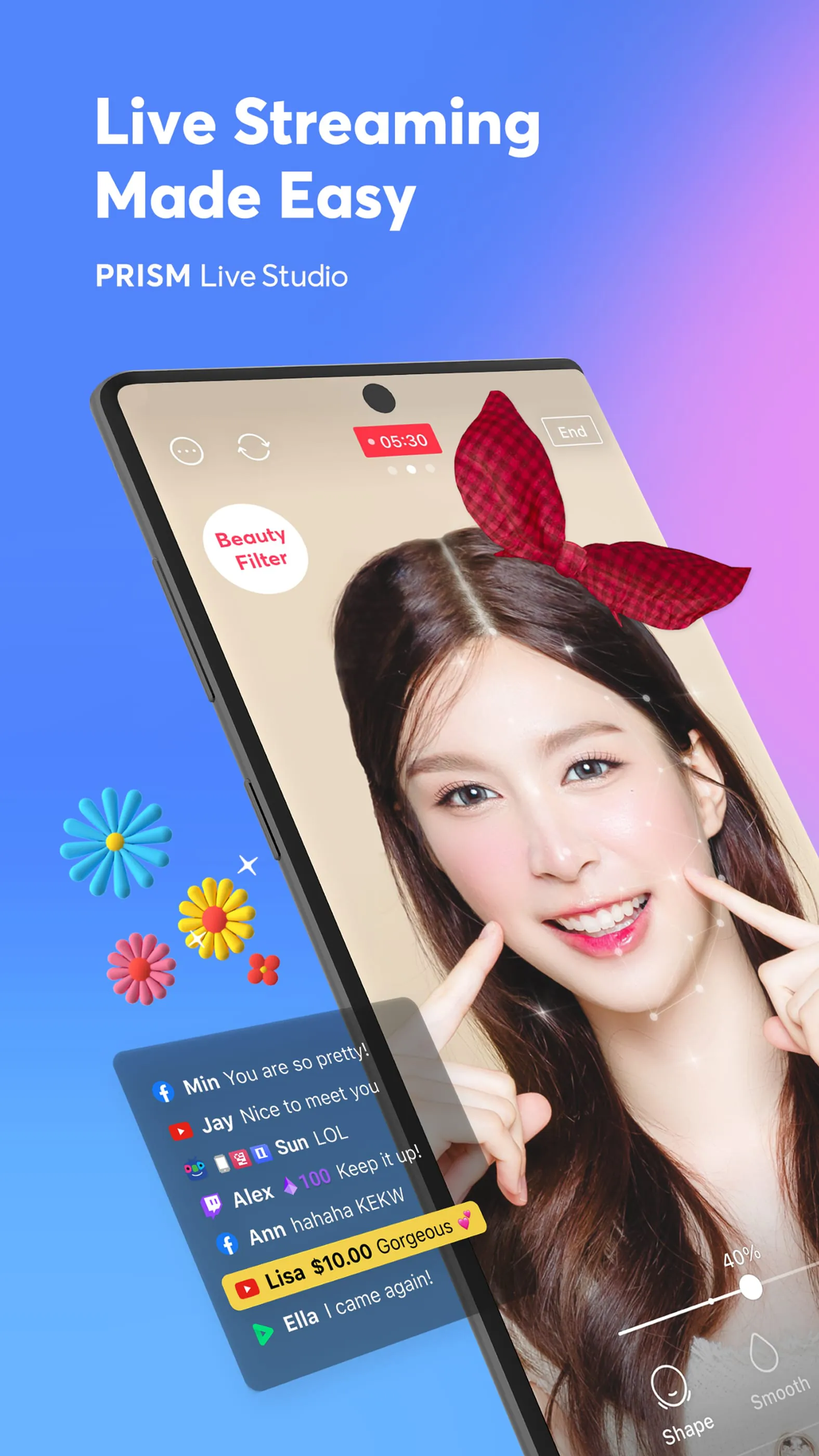
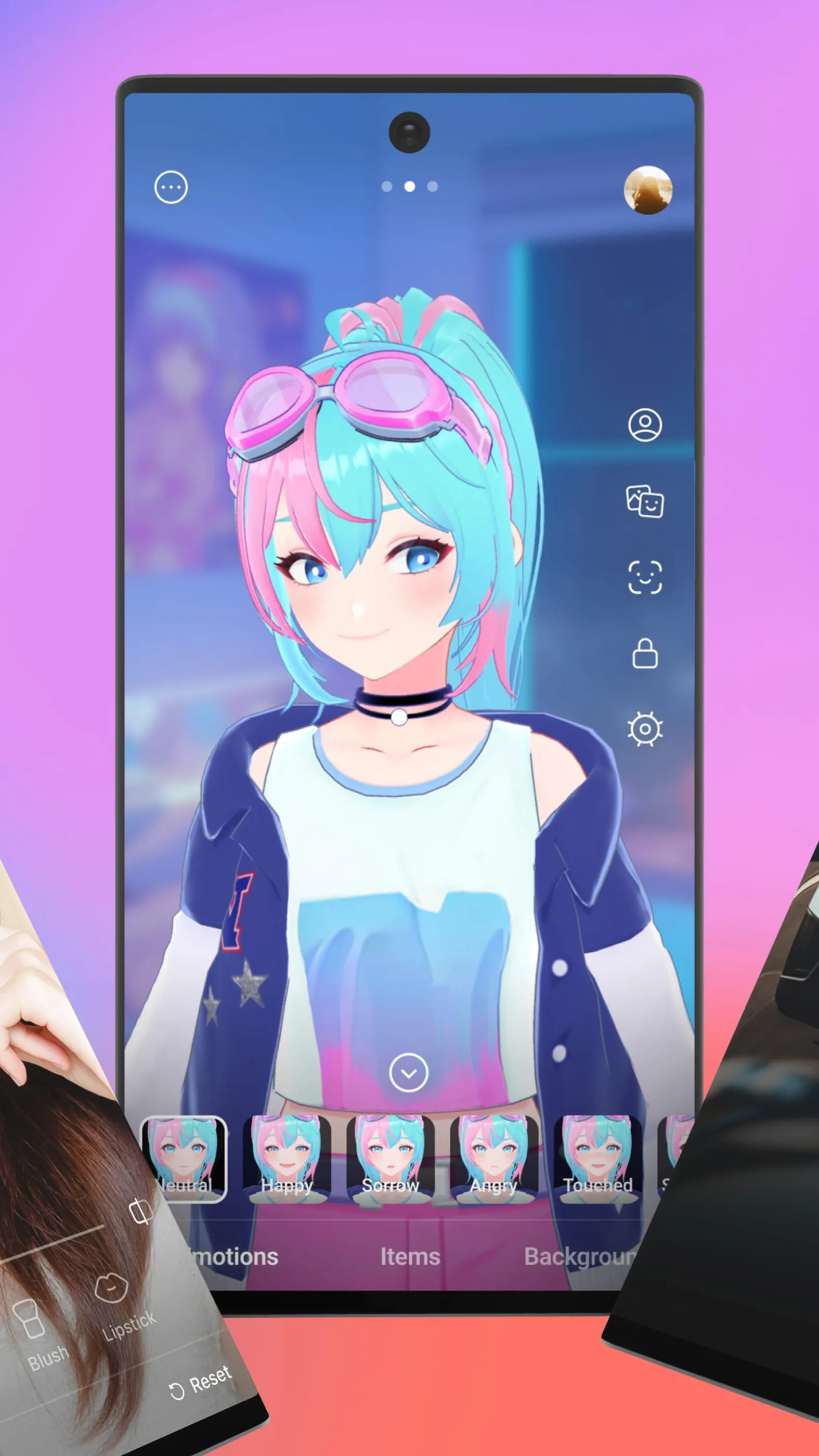
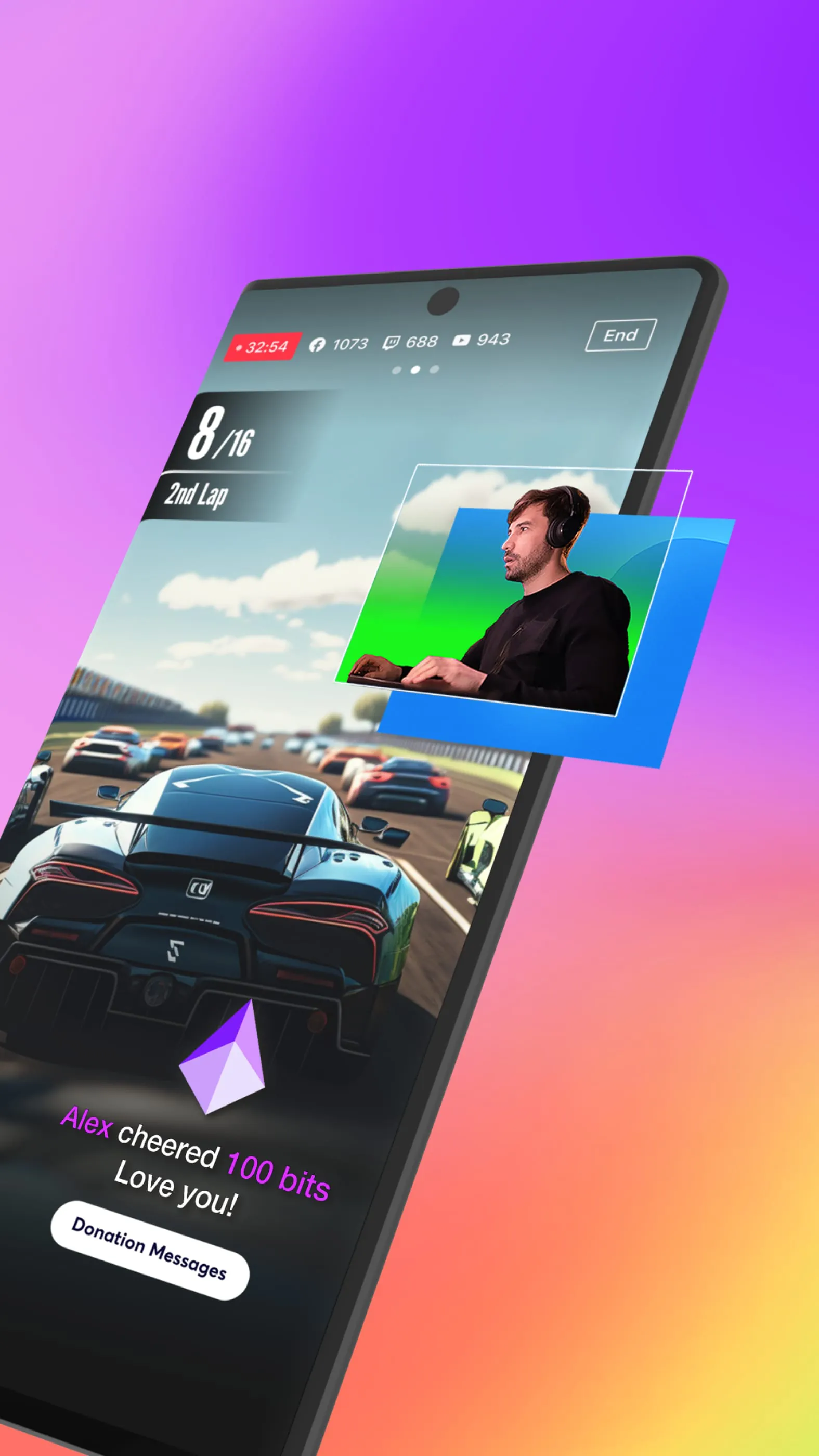
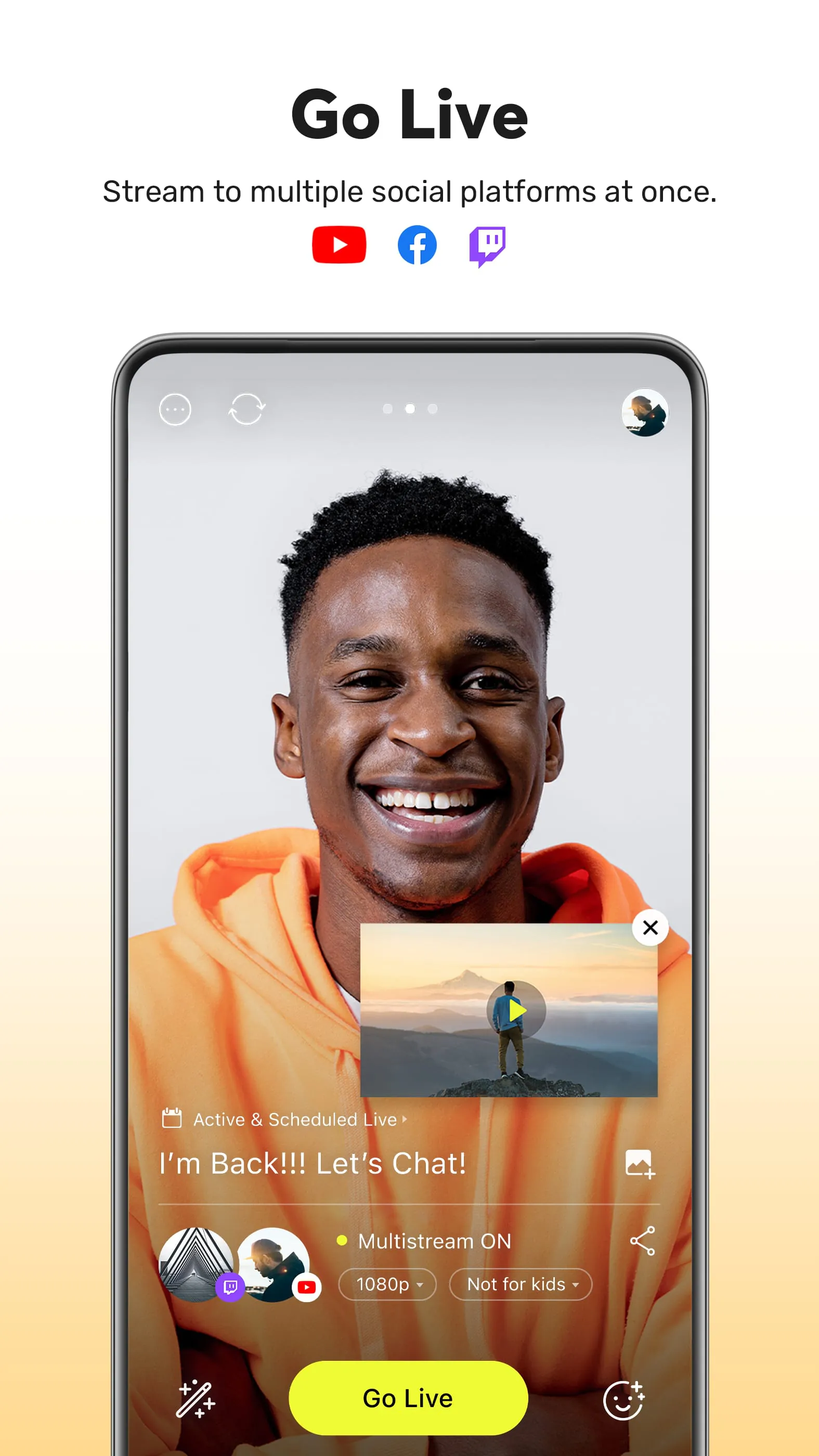
Start live streaming on platforms such as Facebook, YouTube, Twitch and more
 APK
APK  Google Play
  iOS
iOS  4.50
4.50ADVERTISEMENT
ADVERTISEMENT
Author's Review
com Review
Screenshots
Additional Information
Category
Video Players & EditorsVersion
V4.1.11
Tag
streaming | stream | prism
Rate
4.50
★★★★★
Reviews
500 +
Installs
5M +
Developer
NAVER Corporation
Content Rating
Everyone
Start live streaming on platforms such as Facebook, YouTube, Twitch and more
ADVERTISEMENT
ADVERTISEMENT
Previous Versions
ZIP files require a Split APKs Installer (e.g., SAI) from Google Play to install. Steps: 1. Download SAI from Google Play; 2. Open SAI and tap "Install APKs"; 3. Select the ZIP file; 4. Complete installation.
V4.3.5

Package Name
com.prism.live
Version Name
V4.3.5
Version Code
V4.3.5
File Size
139.84 MB
Update time
2024-7-9
V4.1.11
Package Name
com.prism.live
Version Name
V4.1.11
Version Code
V4.1.11
File Size
89.62 MB
Update time
2024-3-20
V4.1.4
Package Name
com.prism.live
Version Name
V4.1.4
Version Code
V4.1.4
File Size
89.93 MB
Update time
2024-1-27
V4.0.5
Package Name
com.prism.live
Version Name
V4.0.5
Version Code
V4.0.5
File Size
88.57 MB
Update time
2023-11-21
V4.0.4
Package Name
com.prism.live
Version Name
V4.0.4
Version Code
V4.0.4
File Size
88.57 MB
Update time
2023-10-17
ADVERTISEMENT
You Might Like