

ADVERTISEMENT
ADVERTISEMENT

Yoosee Yoosee
Category
Video Players & EditorsVersion
V6.21.1
Tag
monitoring | yoosee | cloudlink
Rate
3.80
★★★★★
Reviews
500 +
Installs
50M +
Developer
Gwell
Content Rating
Everyone
See your world closer
 APK
APK  Google Play
  iOS
iOS  3.80
3.80ADVERTISEMENT
ADVERTISEMENT
Author's Review
com Review
Screenshots
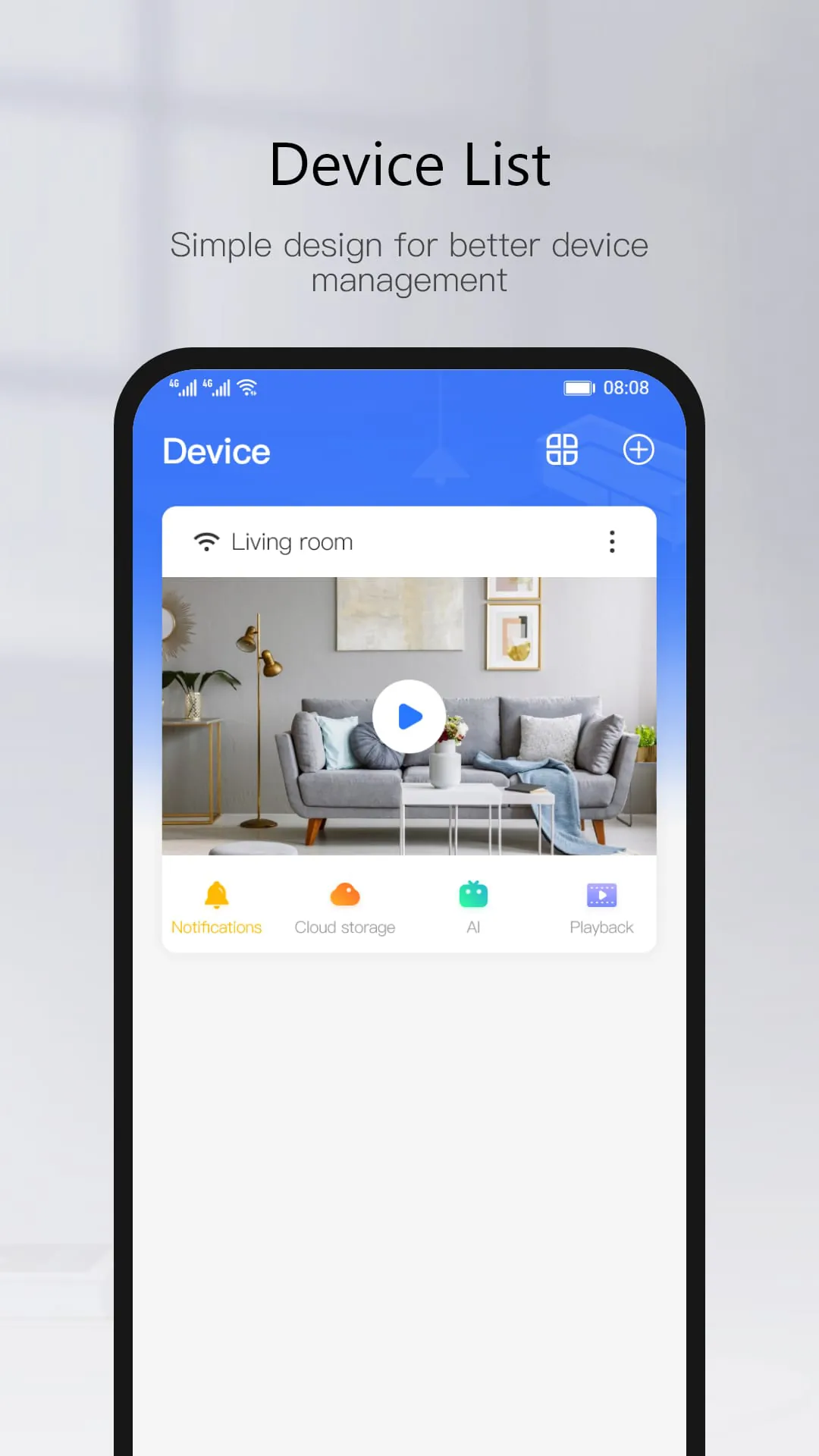
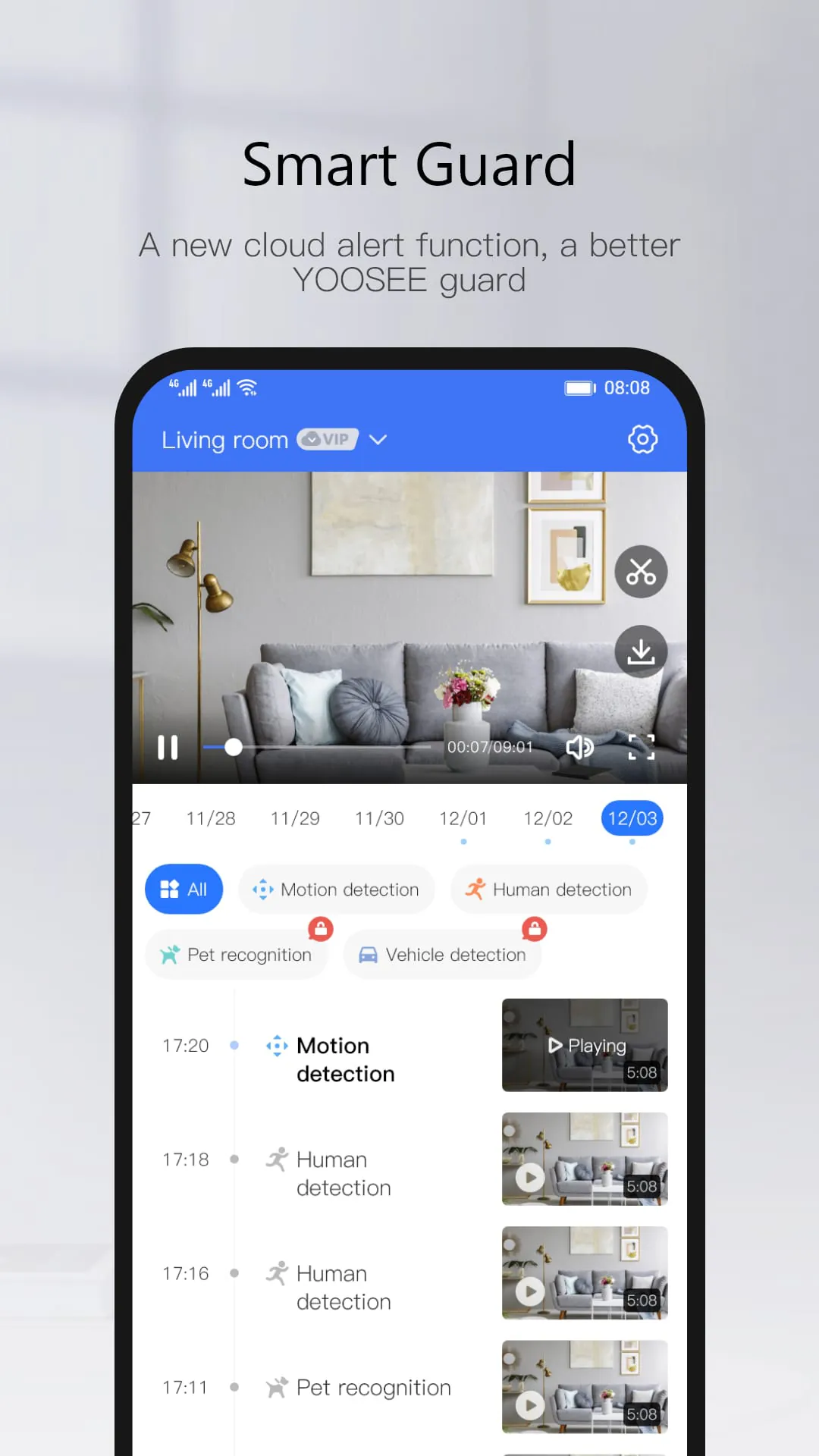
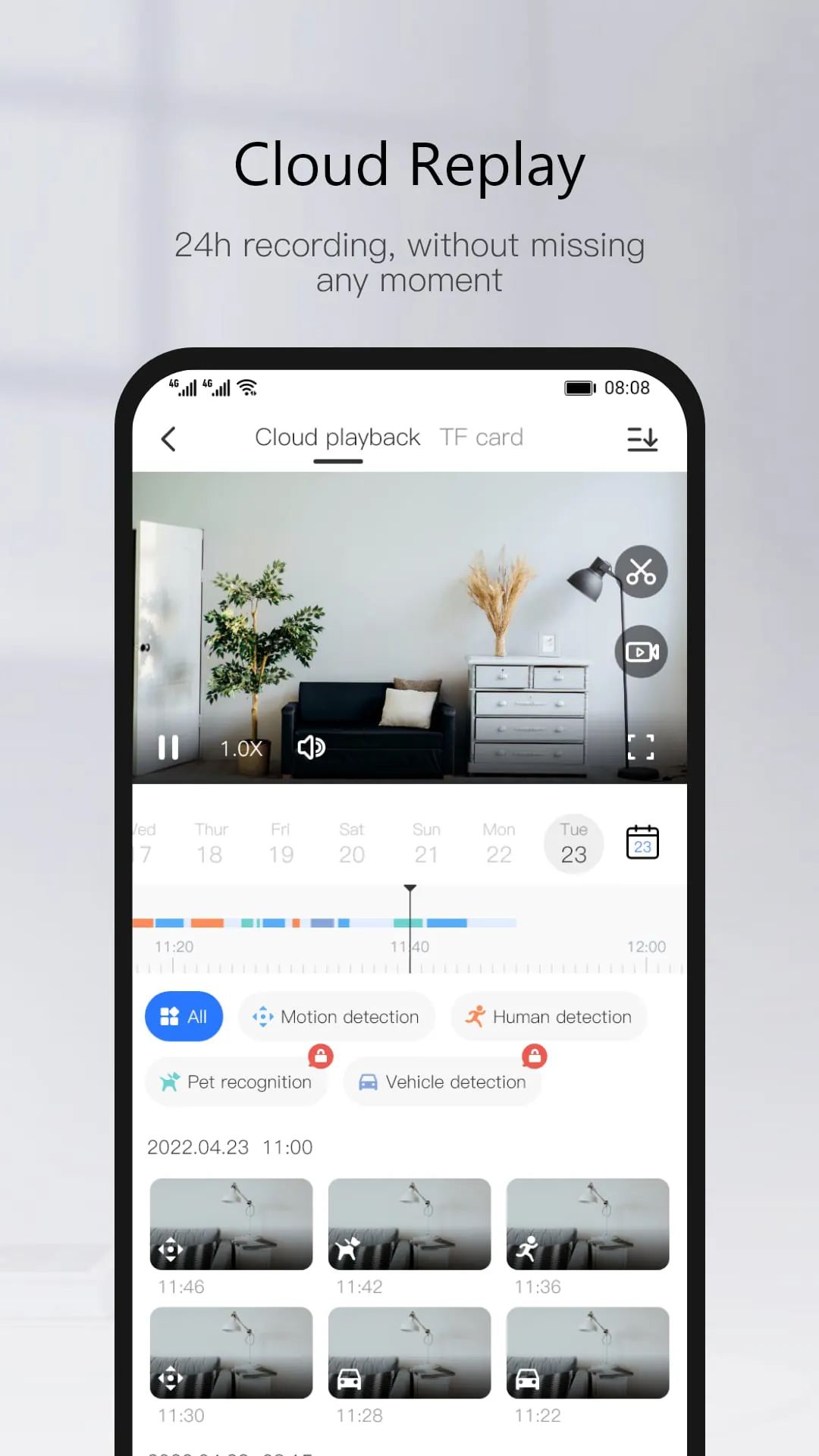
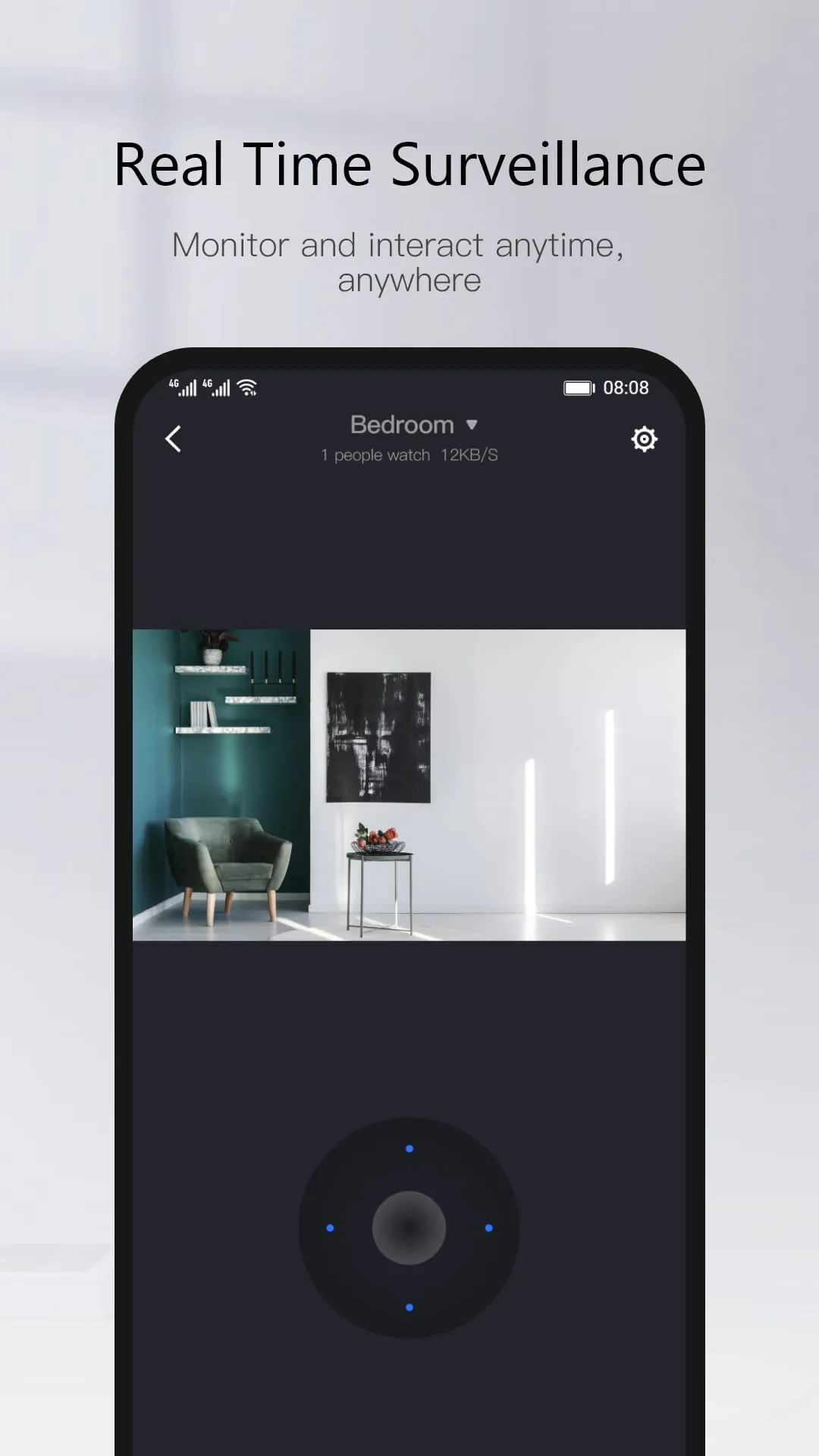
Additional Information
Category
Video Players & EditorsVersion
V6.21.1
Tag
monitoring | yoosee | cloudlink
Rate
3.80
★★★★★
Reviews
500 +
Installs
50M +
Developer
Gwell
Content Rating
Everyone
See your world closer
ADVERTISEMENT
ADVERTISEMENT
Previous Versions
ZIP files require a Split APKs Installer (e.g., SAI) from Google Play to install. Steps: 1. Download SAI from Google Play; 2. Open SAI and tap "Install APKs"; 3. Select the ZIP file; 4. Complete installation.
V6.38.1

Package Name
com.yoosee
Version Name
V6.38.1
Version Code
V6.38.1
File Size
134.29 MB
Update time
2026-1-15
V6.21.1
Package Name
com.yoosee
Version Name
V6.21.1
Version Code
V6.21.1
File Size
131.15 MB
Update time
2024-2-6
V6.20.1
Package Name
com.yoosee
Version Name
V6.20.1
Version Code
V6.20.1
File Size
108.09 MB
Update time
2024-1-3
V6.17.3
Package Name
com.yoosee
Version Name
V6.17.3
Version Code
V6.17.3
File Size
116.45 MB
Update time
2023-10-26
V00.46.06.16
Package Name
com.yoosee
Version Name
V00.46.06.16
Version Code
V00.46.06.16
File Size
119.55 MB
Update time
2023-8-2
ADVERTISEMENT
You Might Like